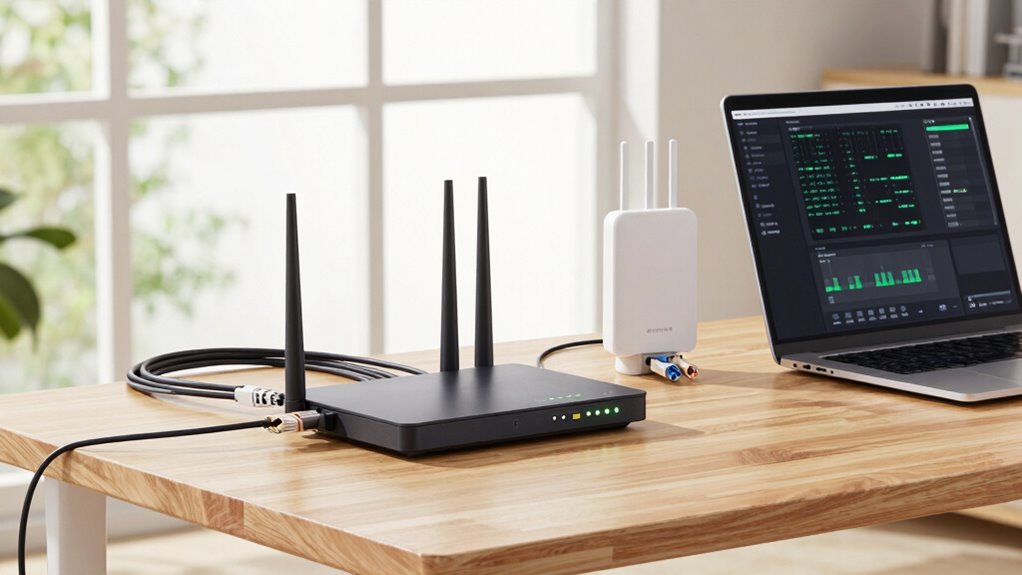

To build a stable home network for upload-heavy work, start by choosing a router that supports Wi-Fi 6 and high-speed data transfer. Position it centrally, away from thick walls and interference sources. Use Ethernet cables for critical connections, and enable WPA3 for security. Manage traffic with Quality of Service rules, and schedule large uploads during low-traffic times. Regularly update firmware and monitor performance—fine-tuning your setup can make all the difference. Keep going to discover more tips to optimize your network.

Get smart everyday buys delivered free with Prime
- Fast, free delivery on millions of items
- Prime Video, Amazon Music and more included
- Member-only deals all year
Key Takeaways
- Position the router centrally and away from interference sources to ensure strong, consistent signal coverage.
- Use wired Ethernet connections for critical upload tasks to maximize speed and reliability.
- Enable WPA3 encryption and change default credentials to secure the network against vulnerabilities.
- Configure QoS settings to prioritize upload traffic and manage bandwidth effectively.
- Schedule large uploads during low-traffic periods to avoid congestion and maintain stability.
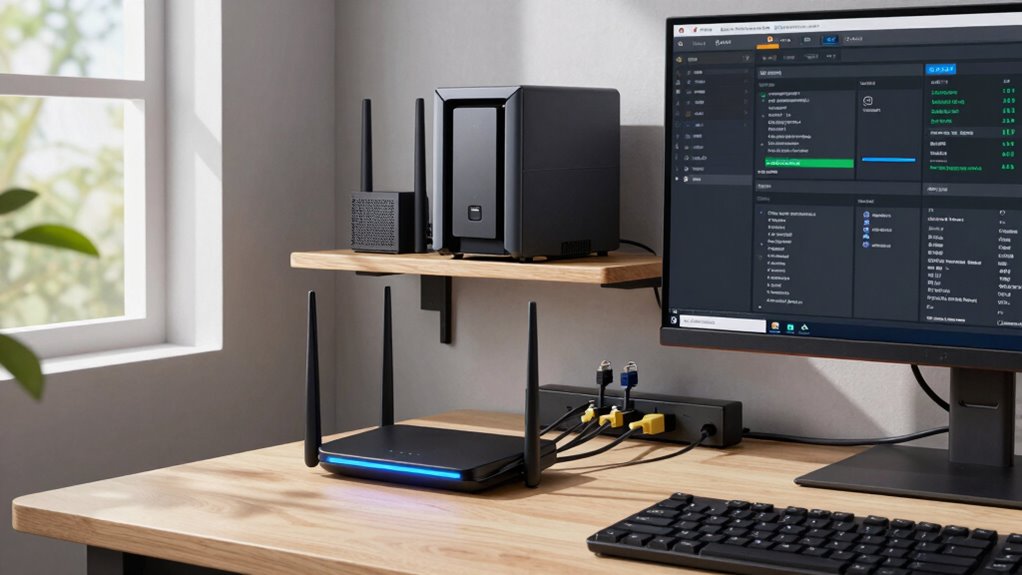
A stable home network is fundamental for seamless internet use, whether you’re streaming, working, or gaming. When your work involves uploading large files or participating in video conferences, a reliable connection becomes even more significant. To build a network that handles upload-heavy tasks smoothly, start by evaluating your current setup. Confirm your router is capable of high-speed data transfer and supports the latest Wi-Fi standards, such as Wi-Fi 6, which offers better efficiency and bandwidth. Position your router centrally in your home, away from thick walls or metal objects, to maximize signal strength and minimize dead spots. A strong, consistent signal reduces interruptions during uploads and makes network troubleshooting easier when issues arise.
Wireless security is a fundamental aspect of a stable home network. You want to safeguard your data from unauthorized access, especially when uploading sensitive work files. Enable WPA3 encryption on your router, which provides enhanced security over older protocols. Change default usernames and passwords to strong, unique combinations, and consider setting up a separate guest network for visitors. This keeps your primary network dedicated to your work devices, reducing the risk of security breaches that could disrupt your upload activities. Regularly updating your router’s firmware also enhances security and fixes bugs that might affect network stability. Additionally, understanding network interference can help you identify and mitigate external factors that compromise your connection quality.
Managing network traffic is essential when you’re doing upload-heavy work. Limit bandwidth-consuming activities on other devices during important uploads, or set Quality of Service (QoS) rules on your router. QoS prioritizes your work-related traffic, ensuring that upload and download speeds are sufficient for your needs. Additionally, connect your computer directly to the router via Ethernet cable if possible. Wired connections are typically faster and more reliable than Wi-Fi, reducing latency and minimizing disruptions during large uploads. Recognizing electromagnetic interference sources can help you position your router more effectively and improve overall network performance. Being aware of potential signal congestion in your area can also help you select optimal times for large uploads to avoid network slowdowns.
Despite these precautions, network issues can still occur. Developing good network troubleshooting habits helps keep your connection stable. Check for interference from other electronic devices, and restart your router periodically to resolve minor glitches. If you experience persistent problems, examine your network logs for unusual activity or congestion. Consider upgrading your hardware or contacting your internet service provider if your current plan isn’t meeting your upload requirements. Furthermore, understanding bandwidth management techniques can optimize your network’s capacity for high-demand tasks. Incorporating quality monitoring tools can also assist in identifying ongoing issues and maintaining a stable connection. With these steps, you’re setting a foundation for a reliable, secure, and efficient home network that supports your upload-heavy work demands.
As an affiliate, we earn on qualifying purchases.
Frequently Asked Questions
How Can I Prioritize Upload Bandwidth Over Downloads?
You can prioritize upload bandwidth over downloads by adjusting your router’s bandwidth allocation settings with Quality of Service (QoS). Access your router’s admin panel, locate QoS settings, and set higher priority for your upload-heavy applications or devices. This guarantees your upload traffic gets precedence, minimizing delays. Regularly monitor your network and tweak the settings if needed to maintain ideal bandwidth allocation for your upload needs.
What Are the Best Routers for Upload-Heavy Work?
You should choose routers with advanced features like Quality of Service (QoS) and multi-user MIMO to prioritize upload traffic. Look for models supporting the latest wireless standards, such as Wi-Fi 6 or Wi-Fi 6E, which offer higher speeds and better bandwidth management. Brands like ASUS, Netgear, and TP-Link have routers designed for upload-heavy tasks, ensuring your connection remains stable and efficient during intensive upload activities.
How Can I Reduce Latency During Large Uploads?
Ever wonder how to minimize latency during large uploads? You should prioritize your network security and optimize equipment placement. Keep your router in a central, elevated spot away from interference sources, and use wired connections whenever possible to reduce delays. Updating firmware and configuring Quality of Service (QoS) settings also help prioritize upload traffic, ensuring smoother performance. These steps reduce latency, making your upload-heavy tasks faster and more reliable.
Is a Wired Connection Necessary for Stability?
A wired connection isn’t strictly necessary for stability, but it’s highly recommended, especially for upload-heavy work. Wireless interference can cause disruptions, making Wi-Fi less reliable. Network segmentation helps by isolating your upload devices from other traffic, reducing congestion. Using Ethernet cables guarantees a stable, consistent connection, minimizing latency and interference. For peak performance, combine wired setups with strategic network segmentation to handle high upload demands effectively.
How Do I Monitor My Network’s Upload Performance?
You can monitor your network’s upload performance by using built-in router tools or third-party apps that track upload speeds in real-time. Regularly check your network security settings to prevent unauthorized access, which can impact performance. Keep your firmware updated to guarantee peak function and security. By staying vigilant with these practices, you’ll get clear insights into your upload performance and maintain a stable, secure home network.
As an affiliate, we earn on qualifying purchases.
Conclusion
With a solid plan and the right equipment, you can create a home network that handles upload-heavy tasks effortlessly. Imagine it like building a highway—prioritize quality routers, wired connections, and proper placement to prevent traffic jams. Even if you worry about cost, investing now ensures smooth, reliable uploads later. Envision this: your files zooming to the cloud without a hitch, so you stay productive without frustration. That’s the power of a well-built network.
As an affiliate, we earn on qualifying purchases.
As an affiliate, we earn on qualifying purchases.
Halloween Picks
halloween
As an affiliate, we earn on qualifying purchases.