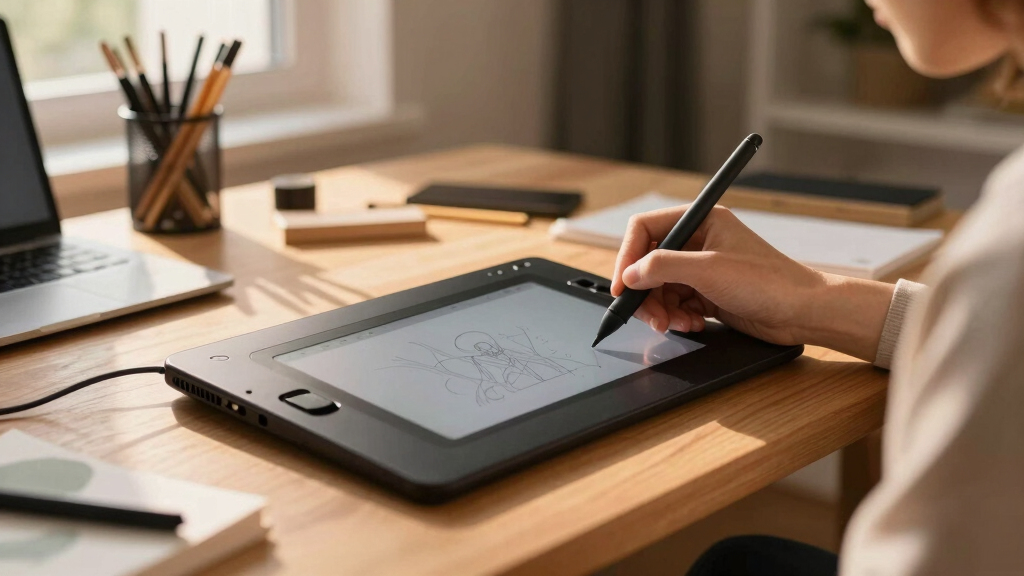

Choosing the best drawing tablet for beginner-to-pro creators involves balancing affordability, features, and ease of use. The PicassoTab A10 stands out as a solid all-around choice for its portability and standalone capabilities, perfect for artists on the go. For those seeking a more versatile and portable device, the Wacom Intuos Medium offers excellent compatibility and customization, ideal for students and educators. Meanwhile, the GAOMON M10K PRO provides a larger drawing surface with advanced features at a competitive price point. The main tradeoffs revolve around screen quality, pressure sensitivity, and whether the device includes a display or is a graphics tablet requiring a connection. Keep reading to see how each option compares and which fits your creative needs best.
Key Takeaways
- Standalone tablets like PicassoTab X and RubensTab T11 Pro excel for portability and ease of setup, ideal for artists who prefer all-in-one devices.
- Wacom’s tablets, especially the Intuos line, prioritize compatibility, customization, and proven stylus performance, making them better for dedicated digital artists.
- Larger drawing surfaces, such as the GAOMON M10K PRO and XPPen Deco 01 V3, offer more workspace but can be bulkier and less portable.
- Premium models with higher pressure sensitivity and color accuracy, like the Artist13.3 Pro, cater to serious creators willing to invest more upfront.
- Affordable, beginner-focused options often sacrifice advanced features but provide a smooth learning curve, making them great for newcomers.


More Details on Our Top Picks
PicassoTab A10 Drawing Tablet • No Computer Needed • Stylus Pen, Pro Drawing Apps & Tutorials • 10″ Screen, 6GB+128GB, Android 14 • Portable, Standalone for Digital Graphic Artist, Student • A10
This standalone tablet shines for its portability and extensive pre-installed software, making it a strong contender for beginners who want an all-in-one art solution. Compared to the PicassoTab X, the A10 offers a larger 10″ laminated IPS display, superior performance with its octa-core CPU, and a more generous 6GB RAM, which translates into smoother multitasking. Its included app bundle—Concepts, Infinite Painter, and FlipaClip—supports various creative styles without subscription fees, while lifetime tutorials foster learning. Tradeoffs include a higher price point and somewhat bulkier design compared to compact models like the PicassoTab X. This pick makes the most sense for students or hobbyists seeking a portable, capable device with room to grow, willing to invest a bit more for versatility.
Pros:- Laminated IPS HD display reduces parallax for natural strokes
- Powerful octa-core CPU with 6GB RAM ensures smooth multitasking
- Pre-installed professional drawing apps and lifetime tutorials
Cons:- Relatively higher price compared to basic or smaller models
- Bulkier and heavier than compact tablets like the Wacom Intuos
Best for: Beginner digital artists and students who want an all-in-one portable device with pre-installed apps and tutorials.
Not ideal for: Advanced creators needing professional-grade color accuracy or larger screens for detailed work, as the 10-inch display may be limiting.
- Display Type:IPS HD
- Screen Size:10 inches
- Pressure Sensitivity:4096 levels
- Operating System:Android 14
- RAM:6GB
- Storage:128GB (expandable to 1TB)
Bottom line: Ideal for beginners and students seeking a portable, all-in-one standalone drawing tablet with strong performance and educational support.
Wacom Intuos Medium Bluetooth Graphics Drawing Tablet, Portable for Teachers, Students and Creators, 4 Customizable ExpressKeys, Compatible with Chromebook Mac OS Android and Windows – Black
This Wacom model stands out for its seamless wireless connectivity and broad device compatibility, making it perfect for users who switch between devices or operate in varying environments. Unlike the PicassoTab A10, the Wacom Intuos offers a compact, lightweight design with Bluetooth and USB-A options, enabling flexible working setups. Its 4096-level pressure-sensitive pen provides a natural drawing experience, while the four customizable ExpressKeys enhance productivity. However, it lacks a built-in screen, requiring users to view their work on separate monitors or devices, which may be a drawback for those seeking a fully standalone solution. This makes it ideal for teachers, students, or creators who value portability and flexibility over integrated display features.
Pros:- Wireless Bluetooth connectivity for flexible working
- Compatible with multiple OS including Chromebook, Mac, Windows, Android
- Includes software and online tutorials for beginner-friendly use
Cons:- No built-in display, requiring an external monitor
- Smaller active area (8×5 inches) may limit detailed work
Best for: Educators, students, and creators who need a portable, compatible device with customizable shortcuts and wireless freedom.
Not ideal for: Artists needing a screen for direct drawing without additional screens or those wanting a larger active surface area for detailed work.
- Pressure Sensitivity:4096 levels
- Connectivity:Bluetooth and USB-A
- Display Type:No built-in display
- Active Surface Area:8.5 x 5.4 inches
- Operating System Compatibility:Windows, Mac, Android, Chrome OS
Bottom line: Best suited for users prioritizing portability, device compatibility, and affordability over integrated display features.
PicassoTab X Drawing Tablet • No Computer Needed • Drawing Apps & Tutorials • 4 Bonus Items • Stylus Pen • Portable • Standalone • 10 Inch Screen • Best Gift for Beginner Digital Graphic Artist • PCX
The PicassoTab X offers a compelling entry point for new digital artists with its 10″ IPS HD screen and pre-installed drawing and animation apps, making it a versatile gift for beginners. Compared to the PicassoTab A10, it features a slightly smaller 10-inch display but maintains a similar standalone, portable design with a battery-free stylus and a suite of bonus accessories, including a protective case and glove, valued at $50. Its quad-core processor and 64GB storage provide decent performance for drawing and media consumption, though it may lag behind higher-end models in multitasking or complex projects. Tradeoffs include less RAM and slightly fewer features, but its affordability and included extras make it perfect as a gift or starting device for young artists or students.
Pros:- Pre-installed drawing and animation apps for immediate use
- Includes 4 bonus items: case, glove, power adapter, screen protector
- Portable and standalone with built-in battery
Cons:- Limited RAM (unspecified, but less than high-end models)
- Lower storage capacity (64GB) may limit app and media downloads
Best for: Beginner artists or students looking for an affordable, all-in-one standalone tablet with educational apps and bonus accessories.
Not ideal for: Advanced users or professionals requiring high color accuracy, larger screens, or extensive multitasking capabilities.
- Display Type:IPS HD
- Screen Size:10 inches
- Pressure Sensitivity:8192 levels
- Operating System:Android
- Battery:Built-in
- Included Accessories:Case, glove, power adapter, screen protector
Bottom line: An excellent gift option for beginners or students seeking an affordable, portable standalone drawing tablet with essential accessories.
Frunsi T11 Pro Standalone Drawing Tablet with Screen,10.1 inch FHD Display,No Computer Needed,Octa-Core CPU,Pre-Installed Drawing Apps & Tutorials,More Bonus Items for Beginners, Artists, Students
The Frunsi T11 Pro combines a sizable 10.1″ FHD IPS screen with a powerful octa-core processor, making it suitable for drawing, note-taking, and media consumption. Unlike the PicassoTab X, this tablet features a higher resolution display and pre-installed apps, with additional bonus items such as a case and glove, enhancing its value as a comprehensive starter device. It operates on Android 12, supporting a wide range of creative apps like SketchBook and ArtFlow, and offers a portable, standalone experience that appeals to students and beginners. Tradeoffs include its slightly heavier weight and potential limitations in color accuracy compared to professional-grade devices, but its affordability and preloaded tutorials make it ideal for learning and casual use.
Pros:- Large 10.1″ FHD IPS display for clear visuals
- Pre-installed drawing apps and tutorials for easy learning
- Includes bonus items like case and glove for protection
Cons:- Heavier than smaller or more compact tablets
- Potentially limited color accuracy for professional work
Best for: Students, beginners, and educators seeking a feature-rich, portable, standalone device with educational apps and accessories.
Not ideal for: Professional artists needing high-end color fidelity or large, high-resolution displays for detailed work.
- Display Type:IPS FHD
- Screen Size:10.1 inches
- Operating System:Android 12
- Processor:Octa-core
- Included Accessories:Case, glove, tutorials
Bottom line: Best suited for beginners and students wanting a versatile, ready-to-use standalone device with educational resources.
Drawing Tablet GAOMON M10K PRO 10 x 6.25 inches Large Graphic Tablet, Digital Art Tablet Supports Tilt & Radial Function with 10 Shortcut Keys, Battery-Free Stylus, Work with Mac, Windows & Android
The GAOMON M10K PRO offers a large active area of 10 x 6.25 inches, supporting tilt and radial functions, making it ideal for more serious beginners and hobbyists who want room to grow. Its battery-free stylus with 8192 levels of pressure sensitivity provides a natural drawing experience, comparable to the Wacom Intuos Medium, but with a larger workspace. The 10 shortcut keys enhance workflow, and compatibility across Mac, Windows, and Android makes it versatile for various setups. Compared to the PicassoTab A10, it lacks a built-in screen but provides more control and customization for users who work primarily with external monitors or tablets. This tablet is perfect for those looking to advance their skills without the high price of professional displays.
Pros:- Large drawing area supports detailed work
- Tilt and radial functions for natural shading and brush control
- 10 shortcut keys for increased productivity
Cons:- No built-in display, requiring external monitor
- Larger size may be less portable
Best for: Hobbyists, students, or aspiring artists who want a large, feature-rich drawing surface compatible with multiple OS and devices.
Not ideal for: Complete beginners who prefer an all-in-one standalone device with a screen or those with limited desk space.
- Active Surface Area:10 x 6.25 inches
- Pressure Sensitivity:8192 levels
- Tilt Support:Yes
- Shortcut Keys:10
- Compatibility:Mac, Windows, Android
Bottom line: Ideal for hobbyists and advancing beginners seeking a large, customizable drawing surface compatible with multiple devices.
RubensTab T11 Pro standalone Drawing Tablet No Computer Needed,10.1 inch FHD Display,Octa-Core CPU,Pre-Installed Drawing Apps & Tutorials,More Bonus Items for Beginners, Artists, Students
This standalone drawing tablet stands out for its complete independence, making it ideal for artists and students who want to create without the fuss of connecting to a computer. The 10.1-inch Full HD IPS screen offers vibrant colors and wide viewing angles, providing an immersive experience comparable to more complex setups like the Wacom Intuos. The built-in battery supports up to 5 hours of continuous use, which is sufficient for casual sessions but limiting for prolonged projects. Its pressure-sensitive pen mimics traditional tools well, although it lacks tilt support, which can be a drawback for advanced shading. Compared to the Wacom Intuos Small, it’s more portable and self-contained, but it sacrifices some precision and software flexibility. This pick makes the most sense for beginners needing a portable, all-in-one device for drawing, note-taking, or quick edits, especially when mobility is a priority.
Pros:- Complete standalone operation, no external device needed
- Vibrant 10.1-inch Full HD IPS display with wide viewing angles
- Pre-installed drawing apps and tutorials for beginners
Cons:- Battery life limited to around 5 hours of continuous use
- Lacks tilt sensitivity and advanced pressure features for professional shading
Best for: Beginners, students, and artists who prioritize portability and all-in-one functionality without needing to connect to a PC or Mac.
Not ideal for: Pro creators or users requiring high precision, extensive software options, or longer working hours, as the battery life and screen size are limited.
- Display Size:10.1 inches
- Resolution:1920×1200P
- Battery Life:Up to 5 hours
- Pen Sensitivity:Pressure-sensitive, no battery
- Connectivity:USB-C
- Included Apps:Pre-installed drawing apps & tutorials
Bottom line: This tablet is perfect for beginners and mobile artists who want a simple, all-in-one drawing device without the need for a computer.
Drawing Tablet, UGEE M708 10 x 6 inch Large Drawing Tablet with 8 Hot Keys, Passive Stylus of 16384 Levels Pressure, Digital Graphics Art Tablet for PC Paint, Design, Art Creation Sketch
The UGEE M708 offers a generous 10×6 inch active drawing area, making it a strong choice for artists who need space to work comfortably. Unlike smaller tablets like the Wacom Intuos Small, its larger active surface promotes more natural, detailed sketches, ideal for beginners transitioning to more serious digital art. The 16384 pressure levels produce accurate lines, comparable to higher-end models, but it’s a passive stylus without tilt or tilt sensitivity, which limits shading versatility. Its compatibility with Windows, Mac, Linux, and Android broadens its usability, making it accessible for diverse setups. The 8 customizable shortcut keys improve workflow but can feel limited for very advanced users. Overall, this tablet suits those starting digital art who want a larger workspace and broad device compatibility at an affordable price.
Pros:- Large 10×6 inch active drawing area for comfortable sketching
- High pressure sensitivity with 16384 levels for detailed lines
- Broad compatibility with Windows, Mac, Linux, and Android
Cons:- Stylus does not support tilt or tilt sensitivity
- Limited shortcut keys for complex workflows
Best for: Beginners seeking a large drawing surface and versatile system compatibility, particularly students and hobbyists.
Not ideal for: Pro artists or those needing tilt sensitivity and advanced shading tools, as the stylus lacks tilt support and the shortcuts may be insufficient for complex workflows.
- Active Area:10 x 6 inches
- Pressure Sensitivity:16384 levels
- Stylus:Passive, no tilt support
- Connectivity:USB, compatible with multiple OS
- Hot Keys:8 customizable buttons
Bottom line: This tablet is a great choice for beginners wanting a spacious workspace and broad device compatibility without a hefty price tag.
Wacom Intuos Small Bluetooth Graphics Drawing Tablet, 4 Customizable ExpressKeys, Portable for Teachers, Students and Creators, Compatible with Chromebook Mac OS Android and Windows – Black
The Wacom Intuos Small stands out for its wireless capability via Bluetooth, offering the freedom to create from anywhere—be it on a desk, couch, or classroom. It provides industry-leading control and precision with Wacom’s EMR technology, making it suitable for detailed work or casual doodling. The 4 customizable ExpressKeys streamline workflow, although they are fewer than larger models like the Intuos Medium, which can be a limitation for power users. Its compact size makes it highly portable, fitting easily into a backpack or laptop bag. Compared to the Wacom Intuos Small with wired connection, the wireless feature adds convenience, but it can be slightly less responsive or have battery considerations. This tablet is ideal for users who value mobility and wireless operation for basic to intermediate digital art or note-taking.
Pros:- Wireless Bluetooth connection for maximum mobility
- Compact and portable design
- Compatible across multiple operating systems including Chromebook
Cons:- Limited to 4 ExpressKeys, less customizable for complex workflows
- Battery life can be a concern with extended use
Best for: Students and creators who need a portable, wireless drawing solution compatible with multiple platforms.
Not ideal for: Pro artists or users seeking high-pressure sensitivity, tilt features, or extensive shortcut customization, as it’s focused on portability and simplicity.
- Size:Small
- Connectivity:Bluetooth, USB
- Pressure Sensitivity:4096 levels
- Express Keys:4 customizable
- Compatibility:Windows, Mac, Android, Chromebook
- Weight:8.82 ounces
Bottom line: This tablet is perfect for users who want the convenience of wireless drawing on the go without sacrificing control and precision.
Wacom Intuos Small Graphics Drawing Tablet, Includes Training & Software; 4 Customizable ExpressKeys Compatible with Chromebook Mac Android & Windows, Black
The Wacom Intuos Small with included training and software makes an excellent entry point for beginners who want a trusted brand and reliable performance. Its 4096 levels of pressure sensitivity and battery-free pen deliver smooth, natural strokes suitable for learning and experimenting. The 4 customizable ExpressKeys help streamline common tasks but are fewer than larger models, which might limit workflow efficiency for more complex projects. Its compatibility with all major operating systems and the included software package make it a versatile choice. While it lacks wireless connectivity, its wired connection ensures consistent responsiveness. This tablet offers strong value for those starting their creative journey or needing a dependable device with broad software support.
Pros:- Trusted Wacom brand with proven control and precision
- Includes training and software for beginners
- Good value for budget-conscious users
Cons:- No wireless connectivity; relies on wired connection
- Limited shortcut keys for advanced workflows
Best for: Beginners and students seeking affordability, reliable performance, and included learning resources.
Not ideal for: Advanced users or professionals requiring tilt sensitivity, wireless operation, or extensive shortcut customization, as the feature set is more basic.
- Pressure Levels:4096
- Express Keys:4
- Connectivity:Wired (USB)
- Compatibility:Windows, Mac, Android, Chromebook
- Included Software:Training & creative software
Bottom line: This tablet is a reliable, budget-friendly choice for newcomers who want a proven brand and comprehensive training support.
GAOMON M10K Drawing Tablet, 10×6 inch Large Graphics Tablet with Touch Ring, 8192 Levels Battery-Free Stylus, 10 Hot Keys, Art Tablet for Design, Writing, Editing, Work with Mac, Windows, Android
The GAOMON M10K combines a sizable 10×6 inch active area with a versatile touch ring, making it suitable for users who prefer more space and tactile controls. Its 8192 pressure levels ensure detailed lines, comparable to high-end models like the PicassoTab A10, but it’s a passive stylus without tilt support, limiting shading finesse. The 10 hotkeys enhance workflow speed, yet for very advanced workflows, more customizable buttons could be preferable. Compatibility across Windows, Mac, and Android broadens its appeal, especially for those working on multiple devices. The inclusion of a touch ring adds an intuitive control element for zooming or brush adjustments, making it a versatile choice for beginners stepping into more serious digital art or design projects.
Pros:- Large 10×6 inch active surface for comfortable drawing
- 8192 pressure levels for detailed control
- Compatible with Windows, Mac, Linux, and Android
Cons:- Stylus does not support tilt or tilt sensitivity
- Limited shortcut customization for complex workflows
Best for: Beginners and hobbyists wanting a larger workspace with tactile controls and broad device compatibility.
Not ideal for: Pro artists or users requiring tilt sensitivity and a higher degree of shortcut customization, as the stylus lacks tilt and hotkeys are limited.
- Active Area:10 x 6 inches
- Pressure Sensitivity:8192 levels
- Stylus:Passive, no tilt
- Hot Keys:10
- Connectivity:USB
- Compatibility:Windows, Mac, Linux, Android
Bottom line: This tablet offers a spacious drawing area and flexible system support, ideal for beginners exploring digital art or design.
XPPen Updated Deco 01 V3 Drawing Tablet-16384 Levels of Pressure Battery-Free Stylus, 10×6 Inch OSU Graphic Tablet, 8 Hotkeys for Digital Art, Teaching, Gaming Drawing Pad for Chrome, PC, Mac, Android
This drawing tablet stands out for its impressive 16,384 pressure sensitivity levels and tilt support, offering a smooth, natural drawing experience comparable to more premium models like the Artist13.3 Pro but at a significantly lower price. Its large 10×6 inch active area provides ample space for detailed work, making it ideal for beginners ready to expand their skills without investing in high-end equipment. Unlike the Artist13.3 Pro, it lacks a color display, so you’ll be drawing on a separate screen, which might slow down workflow for some. The battery-free stylus ensures no charging fuss and precise control, but the absence of a built-in screen means you need to connect to an Android device or PC. Its compatibility with multiple OS and major software makes it versatile, though the need for some adapters can be a minor inconvenience. This pick makes the most sense for beginners seeking high sensitivity and a large workspace on a budget, willing to use a separate monitor or device for display.
Pros:- Excellent 16,384 pressure sensitivity levels for natural line control
- Large 10×6 inch active drawing area provides ample space for detailed work
- Battery-free stylus with tilt support simplifies workflow
Cons:- Requires connection to an Android device or PC, so it isn’t standalone
- No built-in display, meaning you constantly switch between screens
Best for: Beginners who want a high-pressure sensitivity tablet with a large drawing area and versatile connectivity without a high price tag.
Not ideal for: Artists who prefer a display-integrated device for more intuitive drawing or those who want an all-in-one solution for portable, on-the-go use without extra equipment.
- Pressure Sensitivity:16,384 Levels
- Active Surface Area:10 x 6 inches
- Stylus Battery:Battery-free
- Tilt Support:Up to 60 degrees
- Hotkeys:8 customizable
- Connectivity:USB-C, adapters for Android
Bottom line: This tablet is perfect for beginners seeking a sensitive, large workspace with flexible device compatibility at an affordable price.
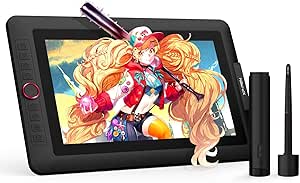
XPPen Drawing Tablet with Screen Full-Laminated Graphics Drawing Monitor Artist13.3 Pro Graphics Tablet with Adjustable Stand and 8 Shortcut Keys (8192 Levels Pen Pressure, 123% sRGB)
This model makes a compelling case for creators who want a portable, professional-grade display tablet, with a 13.3-inch fully laminated screen supporting 88% NTSC (over 91% Adobe RGB) color accuracy, outperforming many non-laminated tablets like the Deco 01 V3. Its fully-laminated display virtually eliminates parallax, providing a more natural drawing experience, similar to high-end Wacom Cintiqs but at a more accessible price. The included adjustable stand and manual tilt support up to 60 degrees, enabling shading and nuanced strokes without software adjustments. With 8 customizable shortcut keys, it streamlines workflows, especially when paired with compatible software like Photoshop or Illustrator. Unlike the Deco 01 V3, this device needs to be connected to a computer but offers rich, vivid colors and detailed visual feedback, making it ideal for professional or serious hobbyist artists. The device’s size and weight make it portable, yet it’s best suited for studio or stationary use due to its screen size and connected nature. It’s a smart choice for creators who prefer drawing directly on a screen rather than a separate device.
Pros:- High color accuracy with 88% NTSC and 123% sRGB for vivid, true-to-life colors
- Fully-laminated 13.3-inch display with negligible parallax for natural drawing
- Adjustable stand and tilt support for shading and ergonomic comfort
Cons:- Requires connection to a computer, reducing portability for on-the-go use
- Larger, heavier design may be less convenient for travel
Best for: Artists and designers needing a high-quality, fully-laminated display with accurate colors and adjustable stand for portable studio work.
Not ideal for: Beginners who prefer a simple, non-display tablet for learning or those who need a standalone device without the requirement of a computer connection.
- Display Size:13.3 inches
- Color Gamut:88% NTSC, 123% sRGB
- Resolution:1920×1080
- Pen Pressure:8192 Levels
- Tilt Support:Up to 60 degrees
- Connectivity:3-in-1 cable to PC/Mac
Bottom line: This tablet is ideal for artists who want a professional, portable display with excellent color fidelity for detailed work on the go or in studio.
How We Picked
These drawing tablets were evaluated based on a combination of performance, usability, build quality, and value for money. Priority was given to devices that balance beginner-friendly features with enough versatility for growing skills. Portability, stylus responsiveness, and compatibility with multiple operating systems played critical roles, as well as the inclusion of pre-installed apps or tutorials that support learning. The ranking reflects a focus on products that suit a range of budgets and skill levels, ensuring each pick provides a clear advantage for specific user needs while highlighting notable tradeoffs like screen quality or size.Factors to Consider When Choosing Best Drawing Tablets For Beginner-to-pro Creators
When choosing the best drawing tablet for beginner-to-pro creators, it’s important to consider several key factors that impact usability and growth potential. Understanding these can help you avoid common pitfalls, like overpaying for features you’ll never use or selecting a device incompatible with your current setup. The right tablet should align with your skill level, creative goals, and workspace preferences, offering a smooth transition from beginner to professional work.Screen vs. Non-Screen Tablets
Deciding between a display tablet and a graphics tablet without a screen is a fundamental choice. Screen tablets, like the Artist13.3 Pro, provide direct drawing on a visual display, which mimics traditional art more closely and reduces the learning curve. However, they tend to be more expensive and heavier. Non-screen tablets, such as the Wacom Intuos line, require looking at a separate monitor, which can be limiting initially but offers better value and portability. Beginners should consider their budget and workspace when making this choice.
Pressure Sensitivity and Stylus Quality
Higher pressure sensitivity (measured in levels) allows for more nuanced brush strokes, making your digital art feel more natural. Most beginner models offer between 2048 and 8192 levels; the latter provides greater control for shading and detailed work. The stylus’s responsiveness and feel are equally important, with battery-free options often preferred for their reliability and lighter weight. Investing in a stylus with better pressure sensitivity can significantly improve your drawing experience as your skills develop.
Size and Portability
The size of the drawing surface influences comfort and workspace. Larger tablets, like the GAOMON M10K PRO, offer more room for detailed work but can be cumbersome for travel or small desks. Smaller options are easier to carry and set up but may limit your ability to draw complex compositions comfortably. Think about your typical workspace and whether portability or size is more critical for your workflow.
Compatibility and Software
Ensure the tablet supports your preferred operating system—Windows, Mac, Android, or Chromebook—and works with your favorite art programs. Many beginner tablets are compatible with multiple platforms, but some may have limited features on certain OS. Pre-installed tutorials or easy integration with popular software like Photoshop, Krita, or Clip Studio Paint can ease the learning process. Compatibility issues are common pitfalls that can hinder progress, so verify these details before purchasing.
Budget vs. Features
Affordable tablets often prioritize basic drawing capabilities, making them ideal for casual hobbyists or newcomers. However, they might lack advanced features like high pressure sensitivity, color accuracy, or larger screens. Investing more typically yields better build quality, stylus performance, and expanded creative potential, which is worthwhile if you plan to develop your skills. Balance your budget against your ambitions—sometimes spending a bit more upfront saves money and frustration later.
Frequently Asked Questions
Is a display tablet necessary for beginners?
Not necessarily. Many beginners start with a non-display graphics tablet, which is more affordable and lightweight. While drawing on a separate screen can feel more natural and intuitive, it also requires adapting to two different visual planes. Non-display tablets help build foundational skills and understanding of digital workflows. As skills progress, upgrading to a display model becomes a natural step for more detailed work and better visual feedback.
What pressure sensitivity should I look for in a beginner tablet?
A pressure sensitivity of at least 2048 levels is generally sufficient for beginners, allowing for smooth shading and line variation. Higher sensitivity, like 8192 levels, offers more nuanced control, but the difference may be subtle at early stages. Focus also on stylus responsiveness and accuracy, as these factors influence how natural your strokes feel. Spending more on higher sensitivity tablets can be beneficial if you aim to develop more detailed or professional work.
Can I use a drawing tablet with my Chromebook?
Yes, many drawing tablets now support Chromebook compatibility, especially models with Bluetooth or USB connectivity. Check for explicit support and whether the device includes compatible drivers or apps. Some tablets come with pre-installed software or are plug-and-play, making setup straightforward. Compatibility varies between models, so verifying this before purchase prevents frustration and ensures your workflow remains smooth.
Are standalone tablets worth the extra cost?
Standalone tablets offer the convenience of an all-in-one device, eliminating the need for a separate computer. They are especially appealing for artists who want portability and simplicity in their setup. However, they tend to be pricier and may have limitations in processing power or screen quality compared to traditional tablets paired with a PC. For dedicated beginners or those who value mobility, they can be a good investment, but if budget is tight, a traditional graphics tablet might deliver better value.
How much should I budget for a good beginner drawing tablet?
Budget options typically start around $50-$100, offering basic functionality suitable for learning and casual drawing. Mid-range tablets, around $150-$300, provide better pressure sensitivity, larger work areas, and improved stylus performance, making them suitable for more serious beginners. Premium models above $400 tend to include higher resolution screens, color accuracy, and advanced features, better suited for those committed to professional growth. Your choice should match your current needs and future ambitions.
Conclusion
For beginners just exploring digital art, a budget-friendly option like the Wacom Intuos Small or UGEE M708 offers reliable performance without overwhelming complexity. Those ready to grow and want a more immersive experience should consider the PicassoTab X for its standalone design or the XPPen Artist13.3 Pro for advanced features. Creators seeking a balance of portability and power will find the RubensTab T11 Pro an excellent choice. For professional-grade work, investing in a high-end display tablet makes sense, but most beginners will find that starting with a mid-range model provides the best value for their current skill level and future potential.