

Use this guide to find a deal on financial planning software, compare the full cost and features, and decide whether to buy, wait, or use a free option. It is for individuals and households who want help with budgeting, savings goals, cash flow, or investments but have not yet chosen a product. Allow 1-2 hours to set your requirements, review offers, check subscription terms, and verify the plan before paying.

Get smart everyday buys delivered free with Prime
- Fast, free delivery on millions of items
- Prime Video, Amazon Music and more included
- Member-only deals all year

SavePoint Personal Finance Software – Budgeting, FIRE Planning, Monte Carlo Simulations, Balance Sheets, Cash Flow – Offline, No…
- ✔ License: Lifetime, no subscription
- ✔ Platform: Windows PC; Mac compatible via virtualization
- ✔ Included drive: 8 GB USB drive

Quicken Classic Deluxe for New Subscribers (1 Year, PC/Mac Online Code)
- ✔ Platform: PC/Mac
- ✔ Subscription duration: 1 year
- ✔ Delivery: Online code
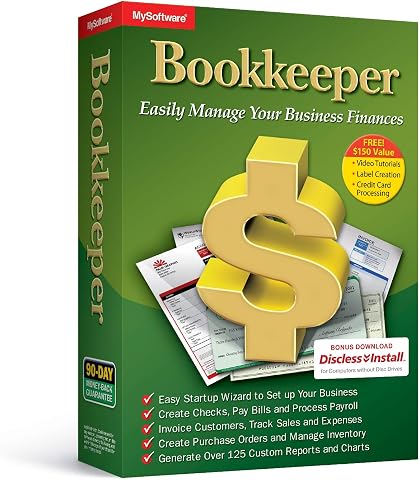
Bookkeeper: Easily Manage Your Business Finances
- ✔ Software type: Bookkeeping and payroll
- ✔ Check printing: Prints to blank check stock
- ✔ Check layout: Customization unavailable
Difficulty: Beginner | Time: 1-2 hours
What You’ll Need
Tools & Materials:
- A computer or phone with internet access
- A spreadsheet or notes app for comparing plans
- A list of the financial tasks you want the software to handle
Knowledge:
- Basic familiarity with your monthly budget and financial goals
- Ability to review a subscription price and payment schedule
Do not enter bank passwords, account numbers, or other sensitive information into a comparison worksheet or an unverified deal page. Use official product websites to confirm pricing and terms before checkout. If you need the software for business, tax, or regulated financial advice, check that the product supports that use before comparing consumer offers.
SavePoint Personal Finance Software – Budgeting, FIRE Planning, Monte Carlo Simulations, Balance Sheets, Cash Flow – Offline, No…
SavePoint earns our top position because it brings household planning, reporting, and long-range FIRE analysis together in one offline package. Its Monte Carlo simulations can help users compare multiple FIRE strategies under varied scenarios, while budgeting, balance sheets, cash flow tools, and variance analysis cover the day-to-day picture. Sankey diagrams and more than ten report types give detail-oriented planners additional ways to inspect where money comes from and where it goes. Compared with Quicken, SavePoint emphasizes privacy and analysis over connected account convenience; buyers should be comfortable entering or maintaining their own financial information.The lifetime license and offline operation are the strongest deal attributes here: they avoid recurring software fees and keep data on the user’s computer. An included USB drive supports data transport, and support for more than 150 currencies and eight languages may help households with international finances. The breadth is also the main drawback. New users may need time to learn the tools, and Mac use requires virtualization or a compatibility layer rather than native support. Choose SavePoint when privacy, ownership, and FIRE planning outweigh automatic account connections; choose Quicken when linked accounts matter more.
Pros:
- Offline operation keeps financial data on the computer.
- Lifetime license avoids recurring subscription charges.
- Monte Carlo simulations support comparison of FIRE strategies.
- Combines budgeting, balance sheets, cash flow, and reporting.
Cons:
- Mac use requires virtualization or a compatibility layer.
- The wide feature set may take time to learn.
- Offline planning means connected-account convenience is not the focus.
Best for: Household planners who want offline control, detailed budgeting and reporting, and Monte Carlo FIRE analysis without an annual software subscription.
Not ideal for: Mac users seeking native installation, or anyone who wants connected accounts and a simpler setup over extensive planning tools.
Bottom line: SavePoint is our strongest personal planning choice when privacy, detailed analysis, and a lifetime license matter more than automatic account connections.
“SavePoint is our strongest personal planning choice when privacy, detailed analysis, and a lifetime license matter more than automatic account connections.”
Quicken Classic Deluxe for New Subscribers (1 Year, PC/Mac Online Code)
Quicken Classic Deluxe takes a more connected approach than SavePoint. It is designed to bring banking, credit cards, debts, investments, and property into one financial view, then use that information for custom budgets, spending tracking, debt projections, and savings growth. For buyers who want to organize several account types without building a plan from manually maintained records, account connections are the central advantage. That makes Quicken a practical fit for ongoing financial oversight, while SavePoint’s edge is deeper stated FIRE analysis and offline data ownership.This listing is for one year of access for new subscribers, so buyers should account for renewal when considering its long-term fit. It supports PC and Mac, but the supplied information says specific features may vary across those versions; platform support alone does not guarantee identical tools. Quicken is also less clearly suited to someone seeking a lifetime license or an explicitly offline privacy model. Compared with Bookkeeper, it remains focused on personal finances rather than payroll and business check workflows. We would choose it for connected household tracking and budgeting, provided an annual subscription and platform-specific differences are acceptable.
Pros:
- Tracks several personal account types in one place.
- Includes custom budgeting and spending tracking.
- Supports debt scenario projections and savings growth.
- Listed for both PC and Mac.
Cons:
- The listed access period is one year and requires a subscription.
- Features may vary between PC and Mac versions.
- Does not match SavePoint’s stated offline privacy and FIRE simulation focus.
Best for: New subscribers who want connected household accounts across banking, credit, debt, investments, and property, with budgeting and debt planning tools.
Not ideal for: Buyers seeking a one-time lifetime license, offline-only data handling, advanced FIRE simulations, or small business payroll tools.
Bottom line: Quicken Classic Deluxe makes the most sense when linked account oversight is the priority and a one-year subscription fits the buyer’s plans.
“Quicken Classic Deluxe makes the most sense when linked account oversight is the priority and a one-year subscription fits the buyer’s plans.”
Bookkeeper: Easily Manage Your Business Finances
Bookkeeper serves a different buyer than SavePoint and Quicken: its stated focus is small business bookkeeping and payroll, rather than household budgeting or investment planning. It supports printing checks on blank check stock and includes support for the 1099-NEC form. Those features can matter to a business that needs records and payroll workflows in its finance software. Quicken covers a wider range of personal account types, while Bookkeeper’s appeal is its business-oriented scope.There are practical limits to weigh before choosing it. Check layout customization is unavailable, which may constrain businesses with specific check formats, and electronic W-2 or 1099 filing is handled through a third-party service for a fee. The supplied specifications list 2022 tax forms and 2023 tax tables, so buyers should verify that the included tax materials suit their current requirements. Bookkeeper is therefore a specialized option in this roundup, not a general financial planning substitute. It makes the most sense when bookkeeping, payroll, and check printing are the main needs; personal planners should look to SavePoint or Quicken instead.
Pros:
- Combines bookkeeping and payroll features.
- Supports printing checks on blank check stock.
- Includes support for 1099-NEC.
- Offers electronic W-2 and 1099 filing through a third-party service.
Cons:
- Check layout customization is unavailable.
- Electronic filing requires a third-party service fee.
- Listed tax forms and tables reference 2022 and 2023.
Best for: Small business operators who need bookkeeping and payroll features, blank check printing, and 1099-NEC support.
Not ideal for: Households seeking budgeting, connected personal accounts, FIRE planning, or businesses that require customizable check layouts or current tax materials without verification.
Bottom line: Bookkeeper is a focused business finance choice for buyers who value bookkeeping and payroll workflows more than personal planning tools.
“Bookkeeper is a focused business finance choice for buyers who value bookkeeping and payroll workflows more than personal planning tools.”
As an Amazon Associate we earn from qualifying purchases.
Before You Start
Decide what you mean by a useful deal before opening comparison pages. A low introductory price may rise after a trial or renewal, while a higher annual price may include features you would otherwise pay for separately. Compare the total cost over the period you expect to use the product, including taxes, add-ons, and renewal pricing when shown.
Write down the tasks you need the software to perform. Examples include tracking spending, building a household budget, forecasting cash flow, setting savings targets, or viewing investment accounts. Separate required features from nice-to-have features. This keeps discounts from steering you toward a plan that does not fit.
Step-by-Step Instructions
Step 1: List your required features
Write down up to five tasks you want the software to handle. Mark each as required or optional. For example, you may require a monthly budget and savings goals, while investment tracking may be optional. Note how many people need access and whether you want a mobile app, desktop access, or both.
Include any practical limits, such as a maximum monthly or annual price, the need to export data, or a preference for manual entry instead of linking accounts. Keep the list nearby while you compare offers.
Tip: If you are unsure which features matter, start with the financial task you currently find hardest to manage.
Check: You have a short list of required features, optional features, users, and a price limit.
Step 2: Set your budget and comparison period
Choose the amount you can pay and the period you want to compare, such as one year. Record the regular monthly price, annual price, trial length, and any introductory discount separately. Calculate the cost across the full comparison period rather than judging an offer by its first payment.
When the product lists an introductory price but not the later renewal price, record the missing figure as unknown. Do not assume that a trial will remain free if you forget to cancel.
Tip: An annual plan can cost less per month while requiring a larger upfront payment. Compare the total payment and the cancellation rules as well as the monthly equivalent.
Check: Your budget and comparison period are written down, and you can distinguish an introductory price from the continuing price.
Step 3: Find offers from reliable sources
Check the software maker’s official pricing page first. Then look for authorized reseller offers, employer or professional association benefits, student discounts if applicable, and reputable comparison sites. Search for the product name with terms such as annual plan, discount, or trial, and confirm that each offer applies to your country and intended plan.
Open the offer details and note the source, expiration date, eligible plan, discount amount, and any code required. Treat a deal page that asks for payment or sensitive account information before showing clear terms as unverified. Confirm the final offer on the maker’s checkout page before paying.
Tip: A discount code may apply only to new customers or a specific billing period. Read the eligibility wording before relying on it.
Check: You have at least two offers or pricing options, with their sources and eligibility details recorded.
Step 4: Compare features and access
Make a comparison table with one product per column and your required features in rows. Check each feature on the product’s own plan page or help center. Record whether it is included, limited, or available only as a paid add-on. Compare the number of supported accounts, household access, data export, mobile availability, and customer support if these affect your use.
Check how the product handles account connections and manual data entry. If you plan to link financial accounts, verify that your bank or institution is supported. Review the product’s privacy and security information, including whether it describes encryption, account access, and how you can remove your data.
Tip: Avoid counting a feature as included based only on an advertisement or a third-party summary. Confirm it for the exact plan you would buy.
Check: Each option has a clear match or gap for every required feature, and account access and privacy information are available for review.
Step 5: Calculate the real cost
For each suitable plan, calculate what you would pay during your comparison period. Add the discounted price, any required add-ons, and known fees or taxes. Include the renewal price if it is listed. If the price changes after a trial, calculate the amount due when the trial ends and the amount due at renewal.
Record cancellation deadlines and refund terms beside the price. A plan with a small first payment may cost more over a year than a competing plan with a straightforward annual price. If the renewal amount or cancellation process is unclear, contact the provider or choose an option with clearer terms.
Tip: Do not compare a monthly plan with a discounted annual plan by looking only at the monthly equivalent. Note the actual charge and when it occurs.
Check: You can state the expected charge today, the cost across your comparison period, and the next renewal price or that it is not disclosed.
Step 6: Check the provider and the terms
Read the plan’s terms before entering payment details. Look for automatic renewal, cancellation steps, refund eligibility, trial conversion, price changes, and limits on data export. Check whether you can cancel online and whether cancellation takes effect immediately or at the end of the paid period.
Review the provider’s support options and service status information. Search for recent reports about billing or access problems, but judge them alongside the provider’s own documentation. Avoid offers that use a lookalike web address, unclear company identity, or pressure to pay through an unusual method.
Tip: Save a copy or screenshot of the listed price, offer conditions, and cancellation policy before checkout.
Check: You know how the plan renews, how to cancel, what refund terms apply, and where to contact support.
Step 7: Choose the best-fit offer
Remove any option that fails a required feature, exceeds your budget, lacks acceptable privacy information, or has terms you cannot verify. Compare the remaining choices by total cost, required features, and ease of cancellation. Choose the lowest-cost option that meets your requirements, or choose a free plan if it covers the tasks you listed.
If no offer meets your needs, wait for a sale, ask the provider about a legitimate discount, or compare another product. Do not buy a higher tier solely to use a discount if you would not otherwise need its features.
Tip: A trial can help you check usability, but only start one when you have time to test it and a reminder set before any paid conversion date.
Check: You can explain why your selected plan meets your requirements and what it will cost over your comparison period.
Step 8: Complete checkout and verify the deal
Go to the provider’s official checkout page from its website or an authorized seller’s page. Select the exact plan and billing period you compared. Enter a discount code if required, then review the final price, renewal amount, trial end date, and account email before submitting payment.
After checkout, save the receipt and confirmation email. Open the account billing page to confirm the plan, next charge date, and cancellation controls. If the displayed amount differs from the offer, do not submit payment until the provider explains the difference.
Tip: Set a calendar reminder several days before a trial ends or an annual plan renews, even if you expect to keep the service.
Check: The account page shows the selected plan and expected charge date, and you have a receipt and reminder for any upcoming renewal.
Common Mistakes to Avoid
- Choosing a plan because its introductory price looks low. — Compare the cost across your chosen period and record the renewal price, trial end date, and billing schedule before checkout.
- Paying for features that do not match your actual needs. — Separate required from optional features first, then remove plans that lack a requirement or charge extra for a feature you need.
- Assuming a discount applies to every customer or billing period. — Read the offer’s eligibility conditions and verify the final amount on the official checkout page.
- Starting a free trial without tracking when it converts to a paid plan. — Record the end date and set a reminder several days ahead. Check the cancellation process before starting the trial.
Troubleshooting
Problem: A discount code is rejected at checkout.
Solution: Check spelling, expiration, eligible plan, country, and new-customer restrictions. Return to the offer source to confirm the code. If the terms appear to match, contact the provider before paying at the full price.
Problem: The final checkout price is higher than the advertised amount.
Solution: Review the billing period, required add-ons, taxes, and whether the advertised figure was a monthly equivalent for an annual payment. If the amount remains unexplained, stop checkout and ask the provider for a written price breakdown.
Problem: You cannot find the renewal or cancellation terms.
Solution: Search the provider’s help center and account billing page for renewal, cancel, and refund instructions. Contact support for the exact terms before entering payment information.
Problem: Your bank is not listed for account linking.
Solution: Check the provider’s current institution list and support notes. Use manual entry only if it suits your needs and you can keep records updated, or compare a product that supports your bank.
What Success Looks Like
You have selected a plan or free option that covers your required tasks, fits your budget over the comparison period, and has terms you can explain. The final price matched the checkout offer, the account page shows the correct plan and billing date, and you have saved the receipt and cancellation information. If you chose a trial, a reminder is set before it converts to a paid subscription.
Next Steps
Set up only the features you plan to use first, then review the software’s privacy settings before linking accounts or importing data. Check the first bill against your saved receipt. Before renewal, revisit your feature list and usage: downgrade, cancel, or renew based on whether the product still meets your needs. Remove linked accounts and request data deletion through the provider’s account controls if you stop using the service.
Frequently Asked Questions
When do financial planning software deals usually appear?
Discounts can appear during seasonal sales, product launches, or limited promotions, but timing varies by provider. Check the official pricing page and compare the full terms when you are ready to buy. Do not delay a needed decision based on a sale date the provider has not confirmed.
Is a free plan a better deal than a discounted subscription?
It can be if it covers your required tasks and has acceptable limits. Compare account caps, export options, support, and included features. A paid plan may be worthwhile when it provides a feature you will use regularly, but a discount alone does not make an unnecessary plan a good fit.
Should I choose a monthly or annual subscription?
Compare the actual total payment, cancellation terms, and how long you expect to use the product. Monthly billing can cost more over a year but may limit the amount committed upfront. Annual billing may lower the per-month cost while requiring a larger payment and careful attention to renewal.
How can I tell whether a deal site is legitimate?
Check the company identity, web address, offer terms, and whether the software provider recognizes the seller as authorized. Confirm the same plan and price through the provider’s checkout flow. Avoid a page with vague terms, unusual payment requests, or requests for financial account credentials.
Can I cancel after using a discount or trial?
Usually the cancellation rules depend on the provider and offer. Read the terms for the plan before purchase, including whether cancellation stops future renewal or triggers a refund. Save the instructions and complete cancellation through the account page or support channel listed by the provider.