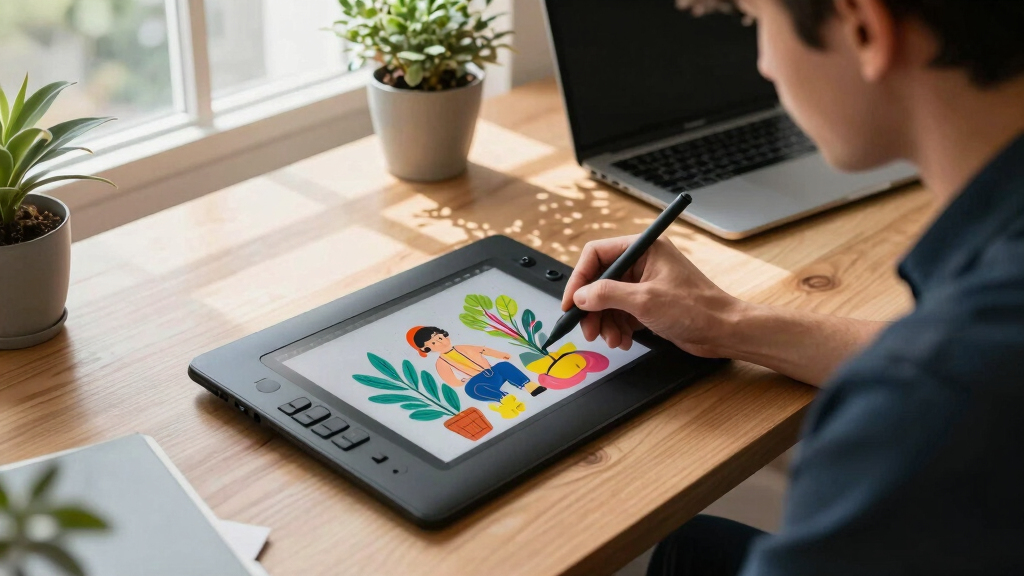

Choosing the best drawing tablet for illustration involves balancing screen quality, responsiveness, and usability. The HUION Kamvas 13 (Gen 3) stands out as the overall top pick due to its vibrant display and smooth pen performance. For those on a budget, the Wacom Intuos Small offers reliable quality with essential features. Meanwhile, the HUION Inspiroy H1060P makes sense for professionals needing hotkeys and a larger working area. Readers face common tradeoffs like screen size versus portability, pen pressure sensitivity versus price, and dedicated features versus simplicity. Keep reading for a detailed breakdown of these options to find your best fit.
Key Takeaways
- The highest-performing screens combine high resolution with excellent color accuracy, as seen in the HUION Kamvas 13.
- Budget-friendly models like the Wacom Intuos still deliver reliable performance but lack a built-in display.
- Larger drawing areas and customizable hotkeys are crucial for professional workflows, which are well-covered by models like the HUION Inspiroy H1060P.
- Portability varies significantly; compact tablets like the HUION H640P suit on-the-go artists, but larger models offer more workspace.
- Pen responsiveness and pressure sensitivity are fundamental; most top picks feature 8192 or higher pressure levels, ensuring precise control.


More Details on Our Top Picks
HUION Kamvas 13 (Gen 3) Drawing Tablet with Screen,13.3″ Full-Laminated Art Tablet with Anti-Sparkle Canvas Glass 2.0, 99% sRGB, PenTech 4.0, 16384 Pen Pressure, Dual Dial for PC, Mac, Android, Black
This model stands out for its stunning 13.3-inch full-laminated display with anti-sparkle glass, making it perfect for artists who want vibrant visuals and reduced glare. Compared with the Wacom Intuos Small, it offers a much larger screen with color accuracy of Avg. ΔE<1.5 and 99% sRGB coverage, providing a more immersive drawing experience. The PenTech 4.0 technology with 16,384 pressure levels ensures natural brushstrokes, though some users might find the pressure response slightly less customizable than premium Wacom options. Its USB-C single cable setup simplifies workflow, and the adjustable stand adds ergonomic comfort. The dual dial and shortcut keys boost efficiency, making it ideal for professional illustrators. However, it requires a computer or compatible device, and the price may be higher than entry-level options. Tradeoff: Larger display and advanced features come with a higher cost.
Pros:- Stunning 13.3-inch full-laminated display with anti-glare glass
- Excellent color accuracy with 99% sRGB coverage and Avg. ΔE<1.5
- Advanced PenTech 4.0 with 16,384 pressure levels and 2g IAF
Cons:- Requires connection to a computer or mobile device, not standalone
- Higher price point compared to basic models
Best for: Professional illustrators who need high color accuracy, a large screen, and versatile compatibility.
Not ideal for: Beginners or those on a tight budget who prefer standalone tablets or smaller, more affordable options.
- Display Size:13.3 inches
- Color Coverage:99% sRGB
- Color Accuracy:Avg. ΔE<1.5
- Pen Pressure:16384 levels
- Connectivity:USB-C single cable
- Stand:Adjustable ST300
Bottom line: This pick is best for professional artists seeking a high-quality, large-screen drawing experience with superb color fidelity.
Wacom Intuos Small Graphics Drawing Tablet, Includes Training & Software; 4 Customizable ExpressKeys Compatible with Chromebook Mac Android & Windows, Black
This tablet makes the list for its familiar pen-on-paper feel, thanks to Wacom’s industry-leading EMR technology, which is especially appreciated by beginners. It’s more compact than the Huion Kamvas 13 (Gen 3), making it ideal for portability and small desk setups. Unlike the Huion, it doesn’t have a display—users draw on the tablet while viewing their work on the monitor—but the high precision and pressure sensitivity of 4096 levels ensure detailed control. The included software and training provide great value for newcomers, although it lacks a screen, which might be a drawback for visual learners. Its battery-free pen avoids charging issues, and the multiple customizable keys boost workflow. However, it’s less suited for artists who want a standalone screen experience or larger drawing surfaces. Tradeoff: Simplicity and portability at the expense of a visual display.
Pros:- High-precision EMR technology with 4096 pressure levels
- Battery-free stylus with no charging required
- Includes software and training for beginners
Cons:- No built-in display, requires viewing on external monitor
- Smaller active area limits drawing space
Best for: Beginners and students who want an affordable, reliable pen tablet with software support and portability.
Not ideal for: Professional artists needing a large display or standalone device for detailed work on the go.
- Active Area:6 x 4 inches
- Pressure Levels:4096
- Connectivity:USB-A
- Compatibility:Windows, Mac, Android, Chromebook
- Stylus:Battery-free PW100
- Tilt Support:±60°
Bottom line: Best suited for newcomers seeking an affordable, portable pen tablet with reliable performance.
XPPen Updated Deco 01 V3 Drawing Tablet-16384 Levels of Pressure Battery-Free Stylus, 10×6 Inch OSU Graphic Tablet, 8 Hotkeys for Digital Art, Teaching, Gaming Drawing Pad for Chrome, PC, Mac, Android
This model makes the list because of its generous 10×6 inch active drawing area, which surpasses many entry-level options like the UGEE M708 for workspace. The 16,384 pressure levels with a battery-free stylus deliver smooth lines suitable for detailed art and design work, comparable with more expensive models. Its eight customizable hotkeys improve workflow, especially for those who switch between tasks like teaching or gaming. While the UGEE M708 offers a slightly more premium texture surface, the Deco 01 V3’s larger active area and compatibility with multiple platforms make it a versatile choice for beginners and hobbyists. Its simple USB-C connection ensures easy setup, but it lacks a built-in display, similar to other basic models. The price point offers excellent value without sacrificing core drawing features. Tradeoff: Larger workspace without a screen, but very affordable.
Pros:- Large 10×6 inch active drawing area
- 16384 pressure sensitivity with battery-free stylus
- 8 customizable hotkeys for efficiency
Cons:- No built-in display, requires external monitor
- Surface texture may be less refined than premium models
Best for: Beginner artists and hobbyists who want a large drawing surface at an affordable price.
Not ideal for: Artists who prefer standalone tablets or need a screen for direct drawing feedback.
- Active Area:10 x 6 inches
- Pressure Levels:16384
- Stylus:Battery-free
- Hotkeys:8
- Connectivity:USB-C
- Surface Texture:Papery
Bottom line: Ideal for beginners seeking a large, affordable drawing surface with core features for creative projects.
Drawing Tablet, UGEE M708 10 x 6 inch Large Drawing Tablet with 8 Hot Keys, Passive Stylus of 16384 Levels Pressure, Digital Graphics Art Tablet for PC Paint, Design, Art Creation Sketch
Compared with the Huion Kamvas 13 (Gen 3), the UGEE M708 offers a more compact 10×6 inch active area, which is still quite large for its price and perfect for tight spaces. Its 16,384 pressure levels paired with a passive stylus support precise, natural strokes, making it suitable for art, sketching, or design. The eight hotkeys streamline workflow, especially for students or hobbyists. While it lacks a display, its compatibility with multiple platforms including Windows, Mac, and Android makes it versatile. Setup is straightforward, and the price remains very competitive, although some users might wish for a higher-quality surface or touch features. It’s a reliable choice for those starting out or working within budget constraints. Tradeoff: Compact size and affordability at the expense of a built-in display.
Pros:- Large 10×6 inch active workspace
- 16384 pressure levels with passive stylus
- 8 hotkeys for quick access
Cons:- No built-in display, external viewing required
- Surface texture less refined than high-end models
Best for: Beginners or students looking for an affordable, reliable drawing tablet with ample workspace.
Not ideal for: Professional artists needing a standalone screen or larger active drawing area.
- Active Area:10 x 6 inches
- Pressure Levels:16384
- Stylus:Passive, battery-free
- Hotkeys:8
- Connectivity:USB-C
- Compatibility:Windows, Mac, Android
Bottom line: Best for beginners wanting a sizable, budget-friendly drawing tablet without a screen.
HUION Inspiroy H1060P Graphics Drawing Tablet with 8192 Pressure Sensitivity Battery-Free Stylus and 12 Customized Hot Keys, 10 x 6.25 inches Digital Art Tablet for Mac, Windows PC and Android
This model is notable for its 10 x 6.25 inch active area, which is slightly larger than typical beginner tablets like the UGEE M708, and its 8192 pressure sensitivity ensures smooth strokes for digital art. The battery-free stylus with tilt support offers a natural drawing feel, comparable to more advanced models. Its 12 customizable hotkeys facilitate workflow customization, making it suitable for artists, teachers, and hobbyists. While it lacks a display, its compatibility with Mac, Windows, and Android makes it highly versatile. The wired connection provides reliable performance, but some users might prefer wireless or touchscreen features. Overall, it offers a balanced mix of size, features, and affordability. Tradeoff: Wired connectivity limits mobility but guarantees consistent performance.
Pros:- Large 10 x 6.25 inch active surface
- 8192 pressure sensitivity with tilt support
- 12 hotkeys for workflow customization
Cons:- Wired connection limits portability
- No built-in display or touch features
Best for: Artists and educators who prefer a larger active area with reliable wired connection for consistent use.
Not ideal for: Mobile artists or those wanting a standalone, touch-enabled device for on-the-go creation.
- Active Area:10 x 6.25 inches
- Pressure Levels:8192
- Stylus:Battery-free with tilt
- Hotkeys:12
- Connectivity:Wired USB
- Compatibility:Mac, Windows, Android
Bottom line: Ideal for users who need a large, reliable wired tablet with good pressure sensitivity and hotkeys.
Wacom Intuos Small Bluetooth Graphics Drawing Tablet, 4 Customizable ExpressKeys, Portable for Teachers, Students and Creators, Compatible with Chromebook Mac OS Android and Windows – Black
This Wacom Intuos Small stands out for its industry-leading precision thanks to EMR technology that feels like pen on paper, making it ideal for those new to digital art or education settings. Compared to the HUION Inspiroy H640P, which offers more hotkeys, the Wacom excels in control and build quality—especially with its wireless Bluetooth connectivity, offering true freedom of movement. Its included software and tutorials make it easier for beginners to start creating immediately, though the smaller active surface may limit more detailed work. The battery-free pen reduces hassle, but the compact size might be less suited for artists needing larger canvases or detailed strokes. Overall, this pick is perfect for students, teachers, and creators who prioritize portability without sacrificing precision.
Pros:- Industry-leading pressure sensitivity with EMR technology
- Wireless Bluetooth connectivity for portability
- Includes software and online tutorials for quick start
- Battery-free pen for low maintenance
Cons:- Limited active drawing area (6 x 3.7 inches)
- Smaller size may restrict detailed work
- Fewer programmable buttons compared to larger tablets
Best for: Beginner illustrators, educators, and mobile creators needing a compact, reliable drawing tablet.
Not ideal for: Professional artists requiring large drawing surfaces or advanced hotkey customization for complex workflows.
- Connectivity:Bluetooth, USB-A
- Pressure Sensitivity:4096 Levels
- OS Compatibility:Windows 7+, macOS 10.10+, ChromeOS
- Active Surface Area:6 x 3.7 inches
- Weight:8.82 ounces
- Measurements:6.3″L x 7.87″W
Bottom line: This tablet suits beginners and mobile users who want a precise, portable device with minimal setup.
HUION Inspiroy H640P Drawing Tablet, 6×4 inch Digital Art with Battery-Free Stylus, 8192 Pen Pressure, 6 Hot Keys, Graphics Tablet for Drawing, Writing, Design, Teaching, Work with Mac, PC & Mobile
The HUION Inspiroy H640P offers a larger active area (6 x 4 inches) with a highly responsive stylus featuring 8192 levels of pressure sensitivity, making it a favorite for students and hobbyists. Compared to the Wacom Intuos Small, it provides more hotkeys and a broader surface, which supports more detailed work and efficient shortcuts across various applications. Its compact, lightweight design enhances portability, and its compatibility with Mac, Windows, Linux, and Android expands its usability for different workflows. However, it lacks a screen, so it’s purely a drawing surface, which might not appeal to those wanting a more immersive experience. This device makes a strong case for budget-conscious artists seeking a versatile, reliable tablet for drawing, writing, and remote teaching.
Pros:- 8192 levels of pressure sensitivity for natural strokes
- Large active surface (6 x 4 inches) for detailed work
- 6 customizable hotkeys for workflow efficiency
- Compatible with multiple OS including Android
Cons:- No built-in screen for direct drawing
- Limited to 0.3 inch thickness, which may restrict certain setups
- No tilt sensitivity or advanced gesture support
Best for: Art students, hobbyists, and those needing an affordable, portable tablet for drawing and note-taking.
Not ideal for: Professional digital artists seeking larger canvases or advanced customization for complex projects.
- Stylus Pressure Levels:8192
- Active Surface Area:6 x 4 inches
- Connectivity:USB, Android compatibility
- Weight:9.6 ounces
- Operating System Compatibility:Mac, Windows, Linux, Android 6.0+
- Dimensions:5.8″L x 10.2″W
Bottom line: Ideal for budget-conscious artists and students who want a versatile, portable drawing surface without a screen.
How We Picked
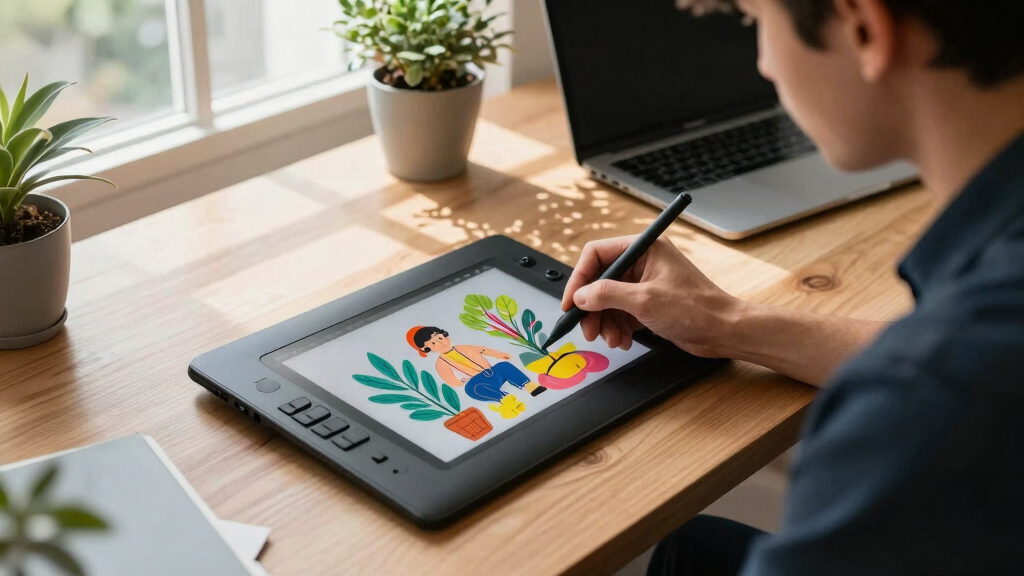
These products were selected based on a mix of performance, usability, build quality, and value. Priority was given to display quality, pen responsiveness, and compatibility with various operating systems, as illustrators need precise control and flexibility. We also considered features like hotkeys, size, portability, and price to match different user needs. The ranking reflects a balance between professional-grade features and affordability, ensuring each pick serves a specific type of illustrator — from beginners to seasoned professionals.Factors to Consider When Choosing Best Drawing Tablets For Illustrators
When choosing a drawing tablet for illustration, it’s vital to consider several factors that directly impact your workflow and creative output. Not all tablets are created equal, and understanding key differences can save you money and frustration. The right device depends on your experience level, preferred working style, and specific project needs. Here are the main aspects to evaluate before making a decision.Display Quality and Screen Size
The resolution, color accuracy, and size of the display significantly influence your ability to produce detailed, vibrant artwork. Larger screens provide more space to work on complex compositions but can reduce portability. High-resolution screens (at least Full HD or 2K) with wide color gamuts offer more precise color matching, which is crucial for professional illustrators. Consider your typical projects and workspace to find a balance between size and clarity.
Pen Sensitivity and Responsiveness
The stylus’s pressure sensitivity, tilt recognition, and lag are core to a natural drawing experience. Most quality tablets feature 8192 or more pressure levels, allowing fine control over line weight and shading. A responsive pen with minimal lag makes a noticeable difference, especially in detailed work or fast sketching. Keep in mind that some tablets come with batteries in their styluses, adding weight and potential maintenance, while others use battery-free styluses for convenience.
Compatibility and Connectivity
Ensure the tablet works seamlessly with your preferred operating system—be it Windows, Mac, Android, or Chrome OS. Connectivity options like USB-C, Bluetooth, or wireless connections affect ease of setup and portability. Some models offer multi-device compatibility, which can be a great advantage if you switch between different computers or want to use the tablet with a mobile device.
Features and Customization
Additional features such as hotkeys, touch controls, and adjustable stands can streamline your workflow. Hotkeys enable quick access to essential tools, saving time during long drawing sessions. However, extra features often increase the cost, so decide which enhancements truly benefit your creative process. Simpler models are often more straightforward for beginners, while professionals may prefer fully customizable options.
Price and Value
While investing in a higher-priced tablet can yield better performance and durability, it’s important to weigh these benefits against your budget. Budget models may lack certain professional features but still provide excellent control for beginners or casual artists. Conversely, premium devices often include larger screens, higher sensitivity, and build quality suited for intensive use. Knowing your needs helps avoid overpaying for features you won’t use.
Frequently Asked Questions
Do I need a display tablet or can I use a pen tablet without a screen?
Choosing between a display tablet and a pen tablet without a screen depends on your workflow preferences and budget. Display tablets allow you to see your work directly beneath the stylus, which provides a more intuitive drawing experience similar to traditional art. Pen tablets without screens, like Wacom Intuos models, require looking at your computer monitor while drawing, which can be less natural but often costs less and is more portable. Both options can produce professional results; it’s a matter of comfort and how much you want to invest.
How important is color accuracy for illustrators?
Color accuracy is vital if your work involves precise color matching, such as character design, concept art, or digital painting. A display with a wide color gamut (like 99% sRGB or AdobeRGB) ensures your colors appear vibrant and true to life. This reduces guesswork and the need for extensive color correction later. For casual sketching or basic illustrations, lower color accuracy may suffice, but professionals should prioritize high-quality screens with accurate color reproduction.
Can I upgrade my stylus or screen later?
Most drawing tablets have integrated styluses and screens that are not upgradeable. However, some models offer compatibility with different styluses or allow firmware updates to improve performance. If you anticipate wanting more advanced features in the future, look for tablets with open standards or those that support active stylus upgrades. Keep in mind that upgrading the core hardware often means replacing the entire device if your needs evolve significantly.
Is it better to buy a larger or smaller drawing tablet?
Choosing size depends on your workflow and workspace. Larger tablets provide more drawing area, which can improve detail work and reduce the need to zoom and pan constantly. However, they tend to be less portable and more expensive. Smaller tablets are lightweight, easier to carry, and cost less but may limit your ability to work on detailed projects comfortably. Consider your typical projects and whether you prioritize precision or portability.
How much should I expect to spend on a good drawing tablet for professional use?
Professional-grade drawing tablets typically fall into the $300 to $1000 range, with higher-end models offering larger screens, higher sensitivity, and more features. Entry-level options can start around $100 to $200 and are suitable for beginners or hobbyists. If your work demands high accuracy, color fidelity, and durability, investing in a premium model is worthwhile. Balance your budget with your specific needs to avoid overpaying for unnecessary features or underinvesting in essential capabilities.